

How to
Your product in a new setting
Take a photo you already have and put the product on a café table, a desk or a shelf, with the product unchanged.
When to use it
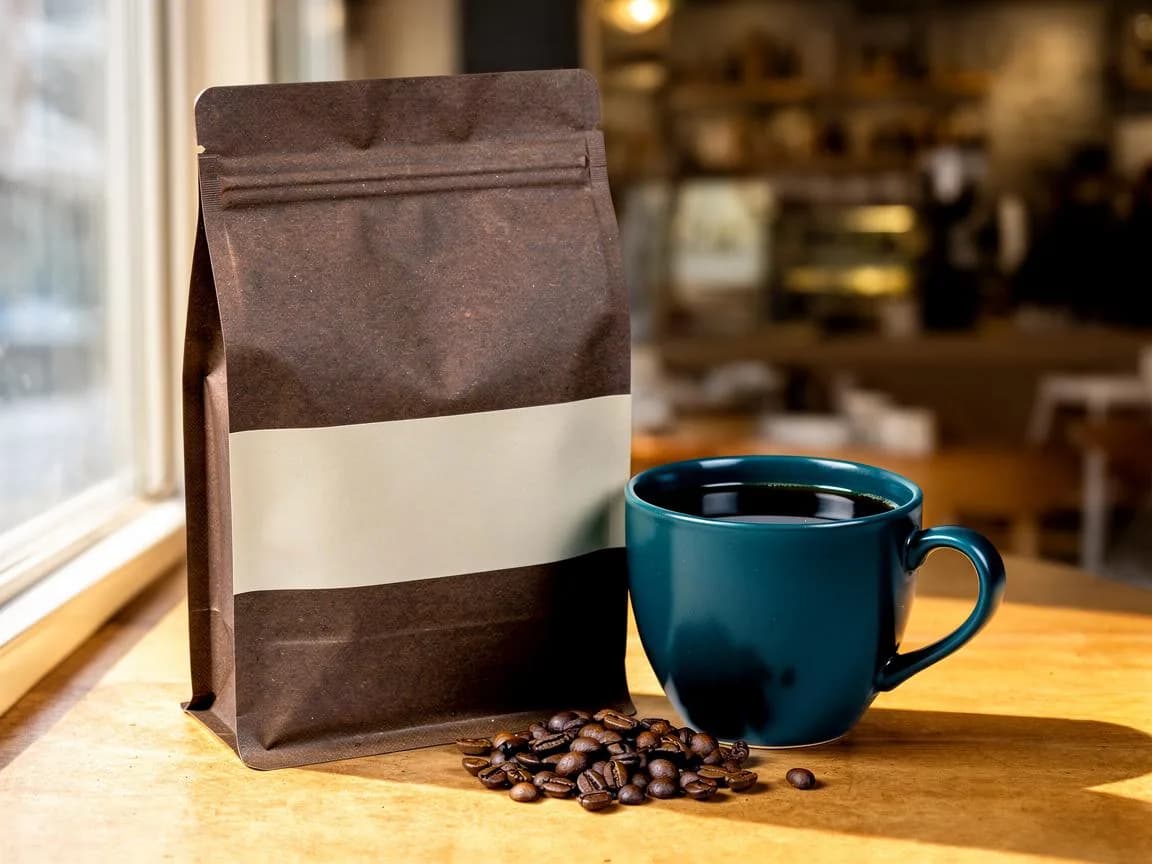
You have a photo of the product, from a designer, a phone or an earlier render, and you need it somewhere else: on a café table for the landing page, on a desk for an ad, in a kitchen for a blog header. Pillow can cut it out and paste it on a painted table, but the light won't match and it looks pasted. In our side-by-side test the café edit was the best single result across three runs, and a blind judge preferred it over the code version (how we tested).
What to ask your agent
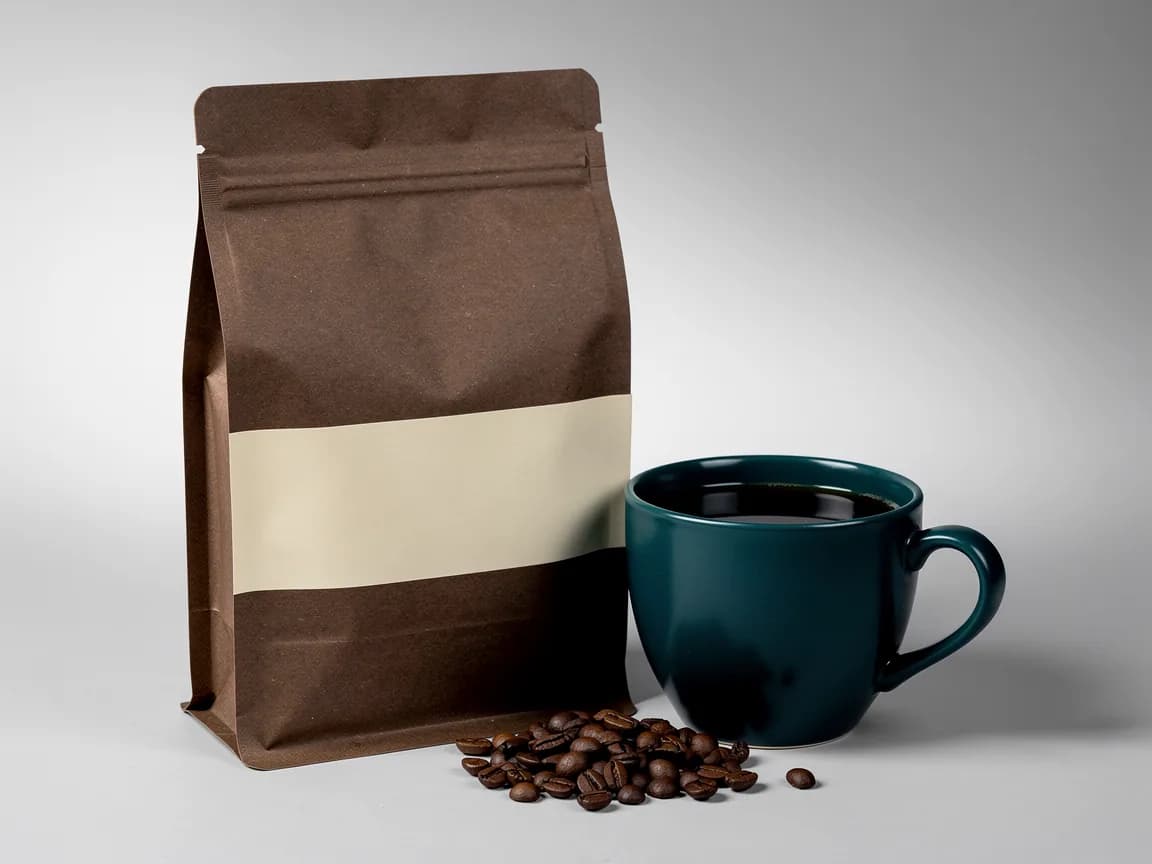
Put our coffee bag photo (assets/bag.png) on a sunny café table by a window. Keep the bag, the cup and the beans exactly as they are.
What your agent sends
The hosted server can't read your disk, so a local file goes up first. The agent calls
vvgen_create_upload with the file name, runs the single-use upload command it gets
back, and receives an asset id. In the Claude app, attach the photo: Claude uploads it itself once you allow
api.vincevangen.com (how), otherwise it gives you the link to open, pick
the photo, and gets the id when the upload finishes. A public https:// URL or the id of an earlier result works directly.
Then vvgen_edit_image. The call from our test, word for word:
{
  "images": ["a_eb7d0b1fef"],
  "prompt": "Place the coffee bag, the teal cup and the beans on a sunny wooden café table by a window, with warm morning sunlight and a softly blurred café interior behind; keep the bag, label band, cup and beans exactly the same in shape, colour and position, keep everything else exactly the same.",
  "seed": 11
}
Lead with the change, then say what must stay: "keep everything else exactly the same". The first image is the canvas and keeps its size. Up to four images can go in one edit; the others are sources the prompt names as "image 2" and "image 3", for example a logo to put on the bag.
What comes back
The edited file, usually a JPEG (add "post": ["png"] for a PNG), a preview, the credits and the model's licence. Its
record lists the photo it was made from by id and SHA-256. This edit was made by the open-source engine's local
default edit model at the time (FLUX.2 [dev]); the hosted Edit tier runs FLUX.2 [pro].
Ask your agent to compare the preview with the original: label shape, colours, the number of beans. If something drifted, a second edit that names only that thing works better than a longer first prompt.
Each extra image in the same edit adds to the price; the quote your agent gets before the call shows the total.
In Cursor and Codex
Same tools: see the Cursor and Codex quickstarts. In Codex,
attaching the photo to the chat is not enough for an MCP tool: the agent still uploads it with vvgen_create_upload.
What it costs
| One edit with your photo | 9 credits ($0.09) |
|---|
From the price card. Your agent gets a quote before each call. Failed results and cache hits cost nothing.
Add it to Claude
One connector for Claude on the web, desktop and mobile, and for Claude Code when it's signed in with your Claude account. Cursor, Codex, Windsurf and other MCP clients are in the quickstarts.
In Claude Code, without a key
claude mcp add -s user --transport http \
  vincevangen https://api.vincevangen.com/mcp
Then run /mcp in Claude Code to sign in.